|
|

|
Creating Lara Outfits Page 4 |
|
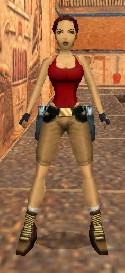
Page 1 - 2 - 3 - 4 - 5 - 6 - 7 - 8 - 9 - 10 - 11 - 12 - 13 - 14 Two Methods Used To Modify Lara's Exterior Now that you have an understanding of how mapping works, let me point out that there are basically two different ways of changing Lara's appearance. First method: Let's take a look at the current mapping of Lara. Turn to your "Lara_BW_Mesh" section and look at the first page. Notice how may of the tiles on her arms, legs, and even her face are mapped back to texture "167." Back inside the large bitmap file texture "167" is only a 4 pixel by 4 pixel image. If you were to change this small image to any other color, you'd automatically change all of those different places on her exterior. I read a post on a forum the other day that was talking about Lara outfits. The author said, "Don't forget that Lara's arms and legs have to stay flesh colored." Using this type of method to change her exterior makes this statement true, however, there's a second method of changing Lara's appearance. Second method: A Practical Example I've always found that the best books ever written to explain how a program works are those books that explain by example. With this in mind I'm going to use a "hands-on" example that should involve all of the remaining aspects of creating outfits for Lara. Follow along closely and do only those things that are mentioned. When you've finished this tutorial go ahead and try and create some outfits on your own. You currently have 7 new folders that you created near the beginning of this Tutorial. The "Laras Closet" folder is the root folder for all your Laras outfit work. In it you should currently have your "Laras_Closet_Toolkit.zip" file. The "Laras Closet\Maps" folder is there to hold only the files that are currently there. Do not add or remove or overwrite any of these files unless told to do so. The "Laras Closet\Outfits" folder is there to hold the outfits that you create or download. This is your "closet" for Lara's outfits. The "Laras Closet\Original" folder has copies of your original tut1 wad files to be copied back into your "trle\graphics\wads" folder. The "Laras Closet\Preview" folder contains "tut1" wad files that are used with the "tut1_starter.PRJ" that's used to preview how your modifications are coming along. The "Laras Closet\Starter" folder contains the complete "starter" wad. This will be used later when you're adding outfits to your existing levels. The last folder is "Laras Closet\Workspace" and this folder should be used to hold all other items. It's like a scratch pad for files that are being worked on. Feel free to create sub-folders inside this folder. For example you could create a folder inside this folder named "Downloads" where you place all of the outfits that you download from the Internet and are waiting to be converted into "Starter" type outfits so that they can be put in your "Outfits" folder. A "Starter" type outfit is simply an outfit that has been moved into our "Starter.WAD" and then saved under a different name. The first thing you'll want to do to begin creating an outfit is to print out another set of the files "Lara_BW_Mesh_Pg1.gif" through "Lara_BW_Mesh_Pg4.gif." Use these pages along with some colored pencils to make as accurate of a sketch as you can of how you want your outfit to look. If you draw a line across a tile in one of the views, be sure to draw that same line across the same tile in all the other views. At this point we're going to create the "tut1_starter.PRJ" level. We'll be using it to take closer looks at Lara. The "tut1" wad files have already been copied to the "trle\graphics\wads" folder so we won't have to do that. Boot your Level Editor program and load in the "tut1_starter.PRJ" from your "trle\maps\tut1" folder. As soon as the project has loaded, go ahead and take a look at the room where Lara is at. You'll see that there are 3 fixed cameras in this room around the outside walls. Each camera is at a different height. You can have Lara hop up onto the outer ledge and position her in front of the desired camera in the desired position and then press the quote key on your keyboard to take a screen shot. The image will be found in your "trle" folder. Go ahead and make this a playable level by outputting a wad and then using the Level Converter to create the level. Go ahead and boot up the Level Editor game and start the "Playable Tutorial Level." Take a few moments to position Lara in front of each of the 3 cameras. Now close the game and let's get back to our tutorial. In this example I'm going to show you how to change the length of the pants that Lara is wearing so that they go farther down her legs. We'll be forced into changing some mapping of the "167" tiles in order to accomplish this feat. I'm also going to show you how to change the color of the top that Lara is wearing. Because the unregistered copy of VicMan's Photo Editor will not load the entire "Starter.bmp" file, I will show you two different methods of modifying the contents of this file. Since both methods are important to learn, I suggest that regardless of what program you are using, that you follow and work through each method. Even though VicMan's Photo Editor will not load the entire file, it will load all of the bitmap except for some of the black area at the bottom of the image. You simply will not be able to save because that will alter the size of the file. You will be able to alter and save using the first method.
|